Readers like you help support my blog. When you make a purchase using links on our site, we may earn an affiliate commission! Thank you!

Wednesday, March 25, 2020

HPE Warns of New Bug That Kills SSD Drives After 40,000 Hours


By Ionut Ilascu March 24, 2020 06:26 PM 1



Hewlett Packard Enterprise (HPE) is once again warning its customers that certain Serial-Attached SCSI solid-state drives will fail after 40,000 hours of operation, unless a critical patch is applied.

The company made a similar announcement in November 2019, when firmware defect produced failure after 32,768 hours of running.
Affected drives

The current issue affects drives in HPE server and Storage products like HPE ProLiant, Synergy, Apollo 4200, Synergy Storage Modules, D3000 Storage Enclosure, StoreEasy 1000 Storage.
HPE Model Number HPE SKU HPE SKU DESCRIPTION HPE Spare Part SKU HPE Firmware Fix Date
EK0800JVYPN 846430-B21 HPE 800GB 12G SAS WI-1 SFF SC SSD 846622-001 3/20/2020
EO1600JVYPP 846432-B21 HPE 1.6TB 12G SAS WI-1 SFF SC SSD 846623-001 3/20/2020
MK0800JVYPQ 846432-B21 HPE 800GB 12G SAS MU-1 SFF SC SSD 846624-001 3/20/2020
MO1600JVYPR 846436-B21 HPE 1.6TB 12G SAS MU-1 SFF SC SSD 846625-001 3/20/2020


The company says that this is a comprehensive list of impacted SSDs it makes available. However, the issue is not unique to HPE and may be present in drives from other manufacturers.

If the SSD in these products runs a firmware version older than HPD7, they will fail after being powered on for 40,000 hours; this translates into 4 years, 206 days, 16 hours and it is about half a year shorter than the extended warranty available for some of them.

When the failure point is reached, neither the data nor the drive can be recovered. Preventing such a disaster is possible in environments with data backup setups.

HPE learned about the firmware bug from a SSD manufacturer and warns that if SSDs were installed and put into service at the same time they are likely to fail almost concurrently.


“Restoration of data from backup will be required in non-fault tolerance modes (e.g., RAID 0) and in fault tolerance RAID mode if more drives fail than what is supported by the fault tolerance RAID mode logical drive [e.g. RAID 5 logical drive with two failed SSDs]” - HPE advisory

The new firmware can be installed by using the online flash component for VMware ESXi, Windows, and Linux.
Not as bad as last time

There is some good news, though. By checking the shipping dates from HPE and considering the 40,000 hours expiration limit, no affected SSD have failed because of this firmware bug.

HPE estimates that unpatched SSDs will begin to fail as early as October 2020. This gives plenty of time for admins to apply the corrected firmware.

Back in November, reports about storage drive failure came pouring on social media and forums, with ussers complaing about device collapsing in bulk, minutes apart.

Finding out the uptime of an affected drive is possible with the Smart Storage Administrator (SSA) utility, which offers the power-on time for every drive installed on the system.

Alternatively, users can run scripts that can check if the firmware on their SSDs has the 40,000 power-on-hours failure issue. The scripts work for certain HPE‌‌ SAS SSDs and are available for Linux, VMware and Windows. 

JohnC_21 - 4 hours ago 

The company said in a bulletin that the “issue is not unique to HPE and potentially affects all customers that purchased these drives.” HPE has not identified the SSD maker and refused to do so, saying: “We’re not confirming manufacturers.”

However, a Dell EMC urgent firmware update issued last month also mentioned SSDs failing after 40,000 operating hours and specifically identified SanDisk SAS drives. The update included firmware version D417 as a fix.

The fault fixed by the Dell EMC firmware concerns an Assert function which had a bad check to validate the value of a circular buffer’s index value. Instead of checking the maximum value as N, it checked for N-1. The fix corrects the assert check to use the maximum value as N.

It seems likely that the HPE drives are SanDisk drives as well.

https://blocksandfiles.com/2020/03/24/hpe-enterprise-ssd-40k-hours-flaw/

Tuesday, March 24, 2020

Sucuri is going to provide crisis responders with a free website firewall for one year during the coronavirus pandemic


Free Sucuri WAF for Medical & Social Services

MARCH 24, 2020CHASE WATTS

0SHARES
FacebookTwitterSubscribe


During the COVID-19 pandemic, there is concern about health systems worldwide. Many people in isolation or self-quarantine are looking for accurate medical information online on a daily basis.

As a result, it is crucial that public health and social service websites remain available. We want to prevent malicious users from abusing these types of websites. So, we decided to stand up and do something about it.

Free year of the Sucuri WAF for crisis responders

Sucuri is going to provide crisis responders with a free website firewall for one year during the coronavirus pandemic. We are offering website protection and increased performance for dedicated professionals and volunteer services who have been acting as crisis responders, such as:
Hospitals
Physicians
Emergency medical technicians
Food banks

All you need to do is submit an eligibility form to get a free year of the Sucuri WAF .

SUBMIT AN APPLICATION
Don’t let bad actors exploit our situation

Though some ransomware groups are claiming they will not be targeting health organizations, there are still bad actors online that will likely treat the COVID-19 outbreak as an opportunity. They do so at their own risk; a response from national cybersecurity units and ethical hackers is inevitable.


@mikko@mikko


Public message to ransomware gangs: Stay the f away from medical organizations. If you target hospital computer systems during the pandemic, we will use all of our resources to hunt you down.
7,687
12:36 PM - Mar 18, 2020
Twitter Ads info and privacy
2,420 people are talking about this


When people flock to a website for help, some hackers and scammers can work to compromise the site and steal valuable data. Worse still, they could even use a distributed denial of service (DDoS) attack to shut it down completely.

This is not just a problem for health care and social services. Many organizations currently lack the IT resources required to address the cybersecurity challenges of rapidly shifting the workforce and business model to an online environment.


Security Under Swift Law@SwiftOnSecurity


We need a global suspension of malware activity right now. Security teams are getting pulled into assisting with Work-From-Home to keep isolation and save people’s lives. Come back 2x harder when this ends whatever. We can’t be doing this right now.
686
9:32 PM - Mar 19, 2020
Twitter Ads info and privacy
187 people are talking about this


For those who are new to working from home, we’ve released a post including security tips for remote workers.
How can Sucuri protect and speed up your website?

We keep our WAF updated with the latest and emerging threat definitions to block DDoS and other attacks by bad actors.

Traffic surges to a website can reduce availability. Our WAF mitigates traffic surges with the Anycast content delivery network (CDN). The Anycast CDN stores copies of a website on numerous points of presence (PoP) throughout the world, and then delivers content to an individual via the nearest PoP.

That improves a website’s availability during episodes of high traffic and speeds up content delivery by an average of 70%.
Count on our WAF for HIPAA compliance

We built our WAF with people in mind who must adhere to the U.S. Health Insurance Portability and Accountability Act (HIPAA). With your website behind our WAF, be confident you’re meeting standards for protected health information.

If you have any questions, feel free to chat with us. Stay safe!

Warning — Two Unpatched Critical 0-Day RCE Flaws Affect All Windows Versions


March 23, 2020Mohit Kumar
Microsoft today issued a new security advisory warning billions of Windows users of two new critical, unpatched zero-day vulnerabilities that could let hackers remotely take complete control over targeted computers.

According to Microsoft, both unpatched flaws are being used in limited, targeted attacks and impact all supported versions of the Windows operating system—including Windows 10, 8.1 and Server 2008, 2012, 2016, and 2019 editions, as well as Windows 7 for which Microsoft ended its support on January 14, 2020.

Both vulnerabilities reside in the Windows Adobe Type Manager Library, a font parsing software that not only parses content when open with a 3rd-party software but also used by Windows Explorer to display the content of a file in the 'Preview Pane' or 'Details Pane' without having users to open it.


The flaws exist in Microsoft Windows when the Adobe Type Manager Library improperly "handles a specially-crafted multi-master font - Adobe Type 1 PostScript format," allowing remote attackers to execute arbitrary malicious code on targeted systems by convincing a user to open a specially crafted document or viewing it in the Windows Preview pane.


"For systems running supported versions of Windows 10, a successful attack could only result in code execution within an AppContainer sandbox context with limited privileges and capabilities," Microsoft said.
At this moment, though it's not clear if the flaws can also be triggered remotely over a web browser by convincing a user to visit a web-page containing specially-crafted malicious OTF fonts, there are multiple other ways an attacker could exploit the vulnerability, such as through the Web Distributed Authoring and Versioning (WebDAV) client service.


No Patch Yet Available; Apply Workarounds
Microsoft said it's aware of the issue and working on a patch, which the company would release to all Windows users as part of its next Patch Tuesday updates, on 14th April.


"Enhanced Security Configuration does not mitigate this vulnerability," the company added.

1) Disable the Preview Pane and Details Pane in Windows Explorer
Meanwhile, all Windows users are highly recommended to disable the Preview Pane and Details Pane feature in Windows Explorer as a workaround to reduce the risk of getting hacked by opportunistic attacks.


To disable the Preview Pane and Details Pane feature:


Open Windows Explorer, click Organize and then click Layout.
Clear both the Details pane and Preview pane menu options.
Click Organize, and then click Folder and search options.
Click the View tab.
Under Advanced settings, check the Always show icons, never thumbnails box.
Close all open instances of Windows Explorer for the change to take effect.
However, to be noted, while this workaround prevents malicious files from being viewed in Windows Explorer, it does not strict any legitimate 3rd-party software from loading the vulnerable font parsing library.


2) Disable the WebClient service
Besides this, it is also advised to disable Windows WebClient service to prevent cyberattacks through the WebDAV client service.


Click Start, click Run (or press the Windows Key and R on the keyboard), type Services.msc and then click OK.
Right-click WebClient service and select Properties.
Change the Startup type to Disabled. If the service is running, click Stop.
Click OK and exit the management application.
"After applying this workaround, it is still possible for remote attackers who successfully exploit this vulnerability to cause the system to run programs located on the targeted user's computer or the Local Area Network (LAN), but users will be prompted for confirmation before opening arbitrary programs from the Internet," the Microsoft warned.


3) Rename or Disable ATMFD.DLL
Microsoft is also urging users to rename Adobe Type Manager Font Driver (ATMFD.dll) file to temporarily disable the embedded font technology, which could cause certain 3rd-party apps to stop working.

Enter the following commands at an administrative command prompt:


For 32-bit system:
cd "%windir%\system32"
takeown.exe /f atmfd.dll
icacls.exe atmfd.dll /save atmfd.dll.acl
icacls.exe atmfd.dll /grant Administrators:(F)
rename atmfd.dll x-atmfd.dll

For 64-bit system:
cd "%windir%\system32"
takeown.exe /f atmfd.dll
icacls.exe atmfd.dll /save atmfd.dll.acl
icacls.exe atmfd.dll /grant Administrators:(F)
rename atmfd.dll x-atmfd.dll
cd "%windir%\syswow64"
takeown.exe /f atmfd.dll
icacls.exe atmfd.dll /save atmfd.dll.acl
icacls.exe atmfd.dll /grant Administrators:(F)
rename atmfd.dll x-atmfd.dll
Restart the system.

Fake Corona Antivirus Software Used to Install Backdoor Malware


By Sergiu Gatlan March 23, 2020 07:12 PM 0


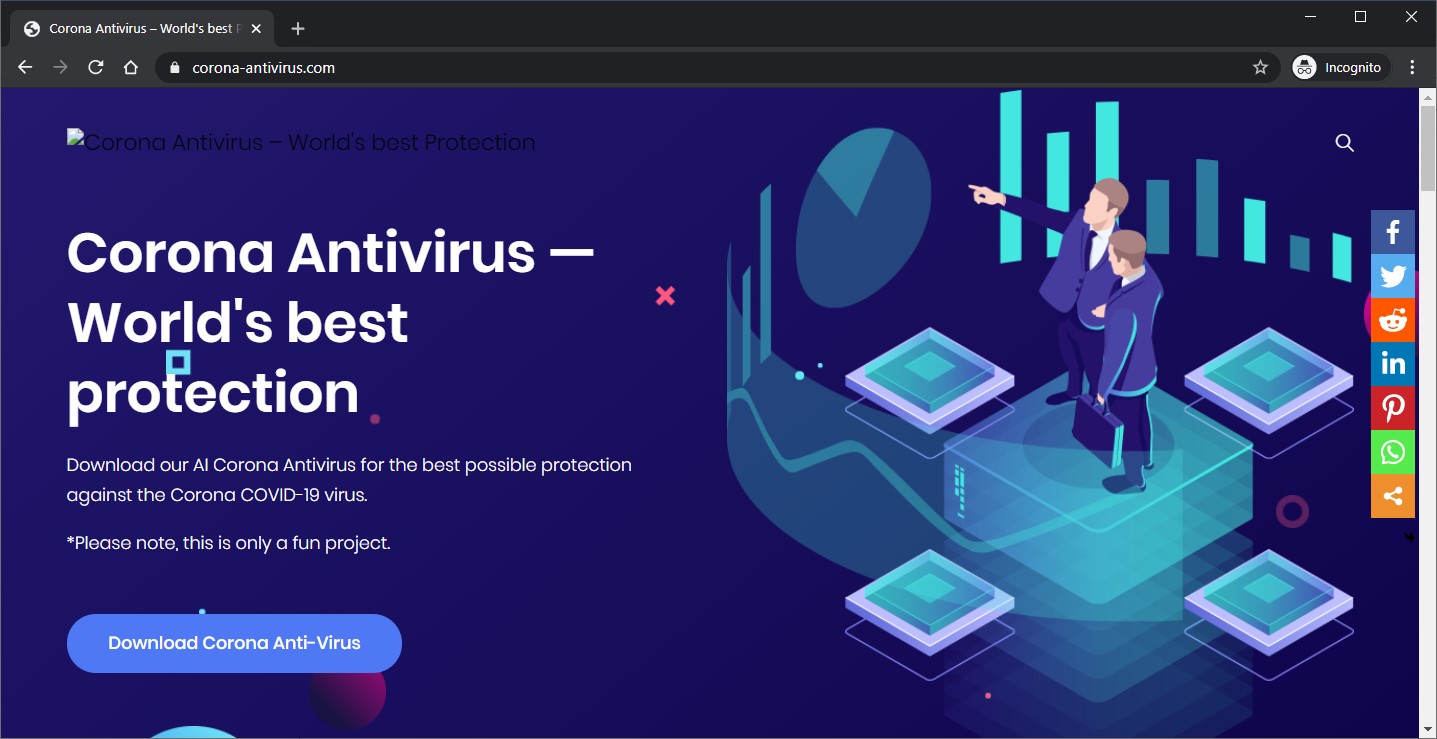
Sites promoting a bogus Corona Antivirus are taking advantage of the current COVID-19 pandemic to promote and distribute a malicious payload that will infect the target's computer with the BlackNET RAT and add it to a botnet.

The two sites promoting the fake antivirus software can be found at antivirus-covid19[.]site and corona-antivirus[.]com as discovered by the Malwarebytes Threat Intelligence team and researchers at MalwareHunterTeam, respectively.

While the former was already taken down since Malwarebytes' report, the one spotted by MalwareHunterTeam is still active but it had its contents altered, with the malicious links removed and a donation link added to support the scammers' efforts — spoiler alert, no donations were made until now.


"Download our AI Corona Antivirus for the best possible protection against the Corona COVID-19 virus," the site reads. "Our scientists from Harvard University have been working on a special AI development to combat the virus using a mobile phone app.

Last but not least, the malicious sites' makers also mention an update that will add VR sync capabilities to their fake antivirus: "We analyse the corona virus in our laboratory to keep the app always up to date! Soon a corona antivirus VR synchronization will be implemented!"

If anyone would fall this, they would end up downloading an installer from antivirus-covid19[.]site/update.exe (link is now down) that will deploy the BlackNET malware onto their systems if launched.

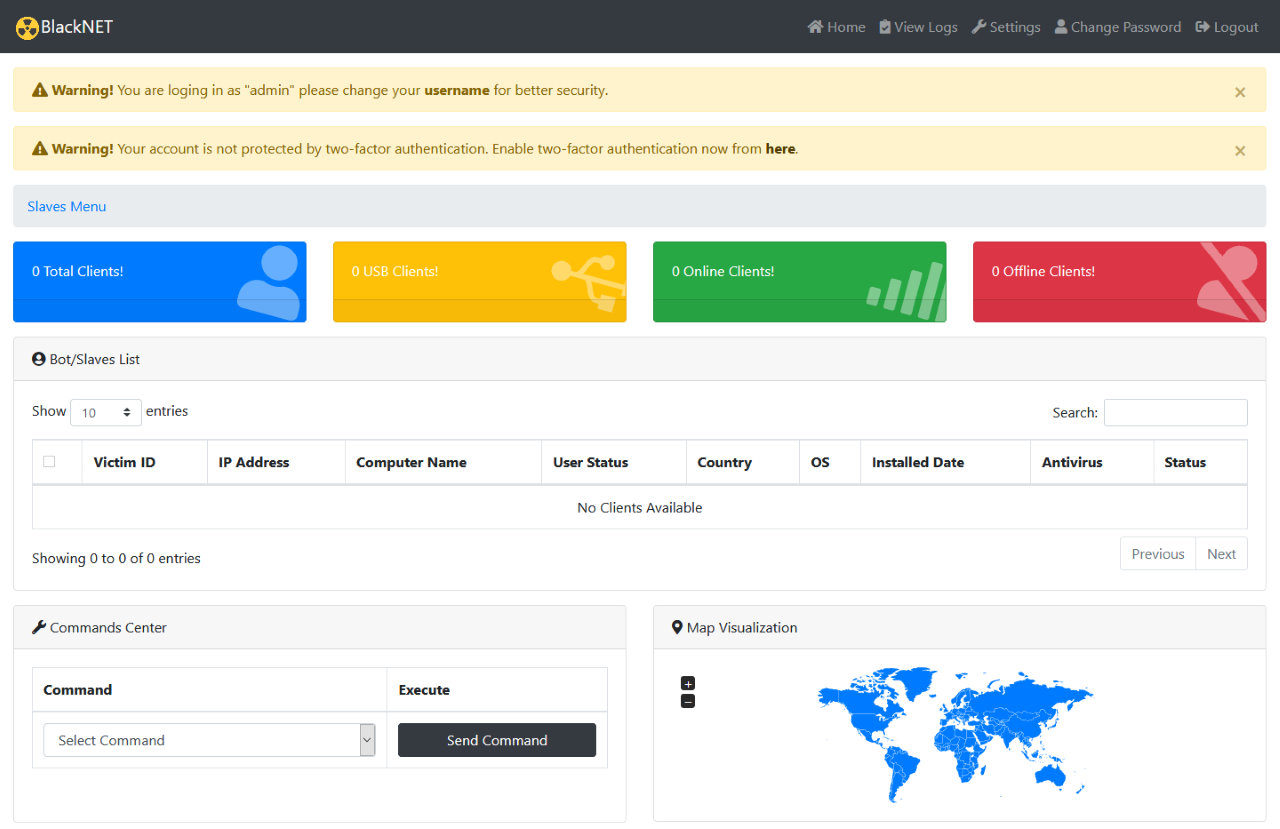
BlackNET will add the infected device to a botnet that can be controlled by its operators:

• to launch DDoS attacks
• to upload files onto the compromised machine
• to execute scripts
• to take screenshots
• to harvest keystrokes using a built-in keylogger (LimeLogger)
• to steal bitcoin wallets
• to harvest browser cookies and passwords.

The BlackNET RAT, which was rated as 'skidware malware' by MalwareHunterTeam, is also capable to detect if it's being analyzed within a VM and it will check for the presence of analysis tools commonly used by malware researchers, per c0d3inj3cT's analysis.
BlackNET command panel

The malware also comes with bot management features including restarting and shutting down the infected devices, uninstalling or updating the bot client, and opening visible or hidden web pages.

One of the sites promoting this bogus Corona Antivirus was spotted by MalwareHunterTeam on March 6, while the other was exposed by Malwarebytes' Threat Intelligence team in a report published today.

In somewhat related news, an HHS.gov open redirect is currently abused by attackers to deliver Raccoon info-stealing malware payloads onto targets' systems via a coronavirus-themed phishing campaign.

The actors behind these ongoing phishing attacks use the open redirect to link to a malicious attachment that delivers a VBS script previously spotted while being employed by the operators behind Netwalker Ransomware to deploy their payloads.

The World Health Organization (WHO), the U.S. Cybersecurity and Infrastructure Security Agency (CISA), and the U.S. Federal Trade Commission (FTC) have all warned about Coronavirus-themed phishing and attacks targeting potential victims from countries around the globe (1, 2, 3).

Monday, March 23, 2020

G SUITE 8 tips for getting it done when working from home


Hashim Director, Product Management, Hangouts Meet, Voice & Calendar


With many businesses considering how best to keep teams connected when not everyone can be in the same location, we’ve been asked by a number of our customers for recommendations for staying productive and on task. Here are some best practices for fostering collaboration when your teams find themselves working remotely.


Set up your team for remote work

Make sure your team has the right tools and processes set up before you transition from working at the office to working from home. Once they’re set up, here are a few extra steps you can take in advance:


1. Create a team alias to easily stay in touch. An email list that includes all your team members lets you quickly share information, and a chat room can be used for faster-moving discussions.


2. Check sharing permissions on important documents so collaborators can edit and comment as needed. You might even consider creating a shared drive where your team can store, search, and access files from any device.


3. Schedule meetings now so you can stay in contact later. Set up calendar invites, create an agenda ahead of time, and attach relevant docs to the invite. It’s also a good idea to make sure everyone is familiar with video conferencing.


Keep your team connected and organized each day

Now that your team is set up and everyone’s ready to work from home, it’s important to keep everyone on the same page. Now that your team is set up and ready to work from home, here are some ways to keep everyone on the same page.

4. Hold daily meetings to stay connected with your co-workers. Working at home can be isolating for some, and video conferencing is a great way to keep people engaged. Try to be visible on camera when appropriate, present relevant content, and ask questions to spark conversations. When time zones prevent everyone from joining a meeting, record it—after making sure that participants feel comfortable being recorded!

5. Share goals and updates regularly. Whether it’s through a chat group or in a shared document that everyone updates, a record of what’s being accomplished is a great way to feel connected, keep everyone up to date, and follow-up on action items. You can also set up an internal site to consolidate important information and resources into a central hub for your team, or to share information with your organization more broadly.

6. Continue to practice good workplace etiquette. Just because your team isn’t at the office doesn’t mean they’re not busy. Check calendars before scheduling meetings, and when you reach out via chat, start by asking if it’s a good time to talk. You can also proactively inform your co-workers of your own availability by setting up working hours in Calendar. That way, if a team member tries to schedule a meeting with you outside of your working hours, they’ll receive a warning notification.


Getting your work done on the Wi-Fi at home

Sharing space—and an internet connection—at home means you might need to be mindful of the needs of others in your household. Here are a few tips.

7. Don’t spend all day on video. There are many tools at your disposal for staying in touch with your team, whether it's a chat room, a shared document, a short survey, or a quick conference call. Pick what works best—especially if you’re sharing an internet connection.

8. Find the right set-up for you. You might need to try a few different configurations before you discover how to stay focused and not distract others. Here are six tips for better video calls including how to turn on live captioning so you can read a transcript of the meeting in real time. These are just a few of the ways the G Suite team is thinking about staying focused and collaborative. For more information, watch these videos with tips on working from home, and check out the latest updates in our Learning Center article on tips for working remotely.